

Version History
Version History lets you review the changes you have made to your store over time and revert back to any earlier version. Open it from the Version history option in the Builder's left menu.
If you ever make a change you don't like, or something breaks, you can restore a previous version and get your store back the way it was.
Prefer to follow along in a video? Watch the walkthrough here, then read the guide below.
The Version History panel
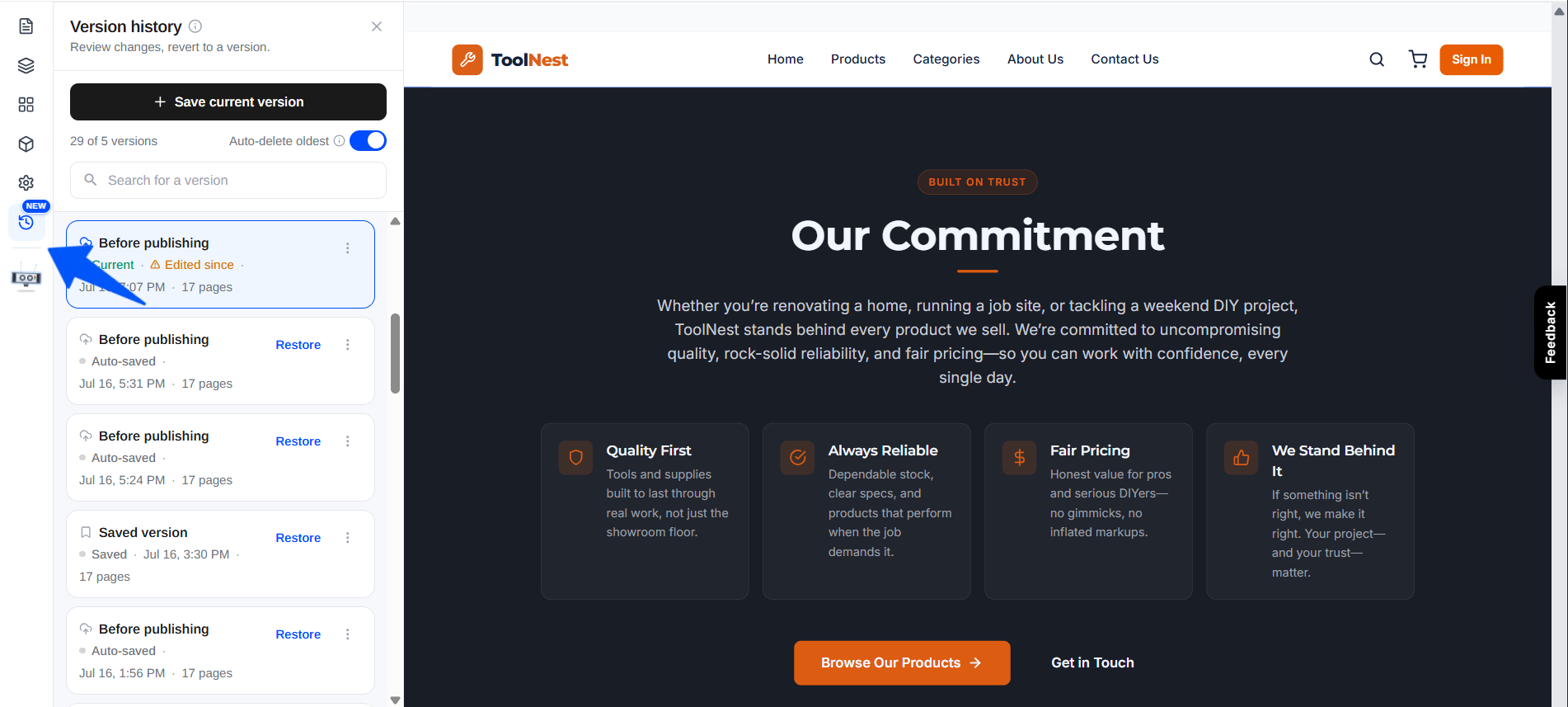
The panel shows a list of All Versions of your store, with a count (for example All Versions (5)). If you've bookmarked any versions, they're grouped separately at the top under Bookmarked Versions. For each version you can see:
- Version name: for example Before publishing, Before, or Saved version.
- How it was saved: most versions are Auto-saved by the system before a publish or restore; ones you save yourself show as Saved.
- Status badges: the version you're on is marked Current, and a version that has been changed since is flagged Edited since.
- Date and time it was saved, and the number of pages it contains.
You can also:
- Save current version: manually save a snapshot of your store at any time, so you can return to this exact state later.
- Search for a version: quickly find a specific version by name.
- Restore: roll your store back to that version (see below).
Auto-delete oldest
At the top, a counter shows how many versions you've saved against your limit — you can keep up to 5 versions at a time (for example 5 of 5 versions), next to an Auto-delete oldest toggle:
- On. The oldest saved version is removed automatically once you hit the 5-version limit.
- Off. You're asked to delete or overwrite instead, so your saved versions are kept.
Managing a version
Each version has a ⋮ (three-dot) menu with more actions:
- Rename. Give the version a clearer name so it's easy to find later.
- Bookmark / Remove bookmark. Bookmark a version to pin it under Bookmarked Versions and protect it from auto-delete. Choose Remove bookmark to unpin it again.
- Delete. Permanently remove that version from the history.
Restoring a version
Click Restore next to any version. A confirmation appears before anything changes:
Restoring is safe and reversible:
- Your products, orders, and customers are not affected: only your pages, theme, and branding change.
- Your current version is saved first, so you can always come back to it.
- The restored version's pages may reference products or blocks you have changed since, so give them a quick look afterward.
To confirm, click Restore & go live: your store is restored to that version and published live. To back out, click No, cancel.